
Views & split screen
Divide the editing screen into panes, choose what each pane shows, resize them, close them, and make one fill the screen.
What panes are for
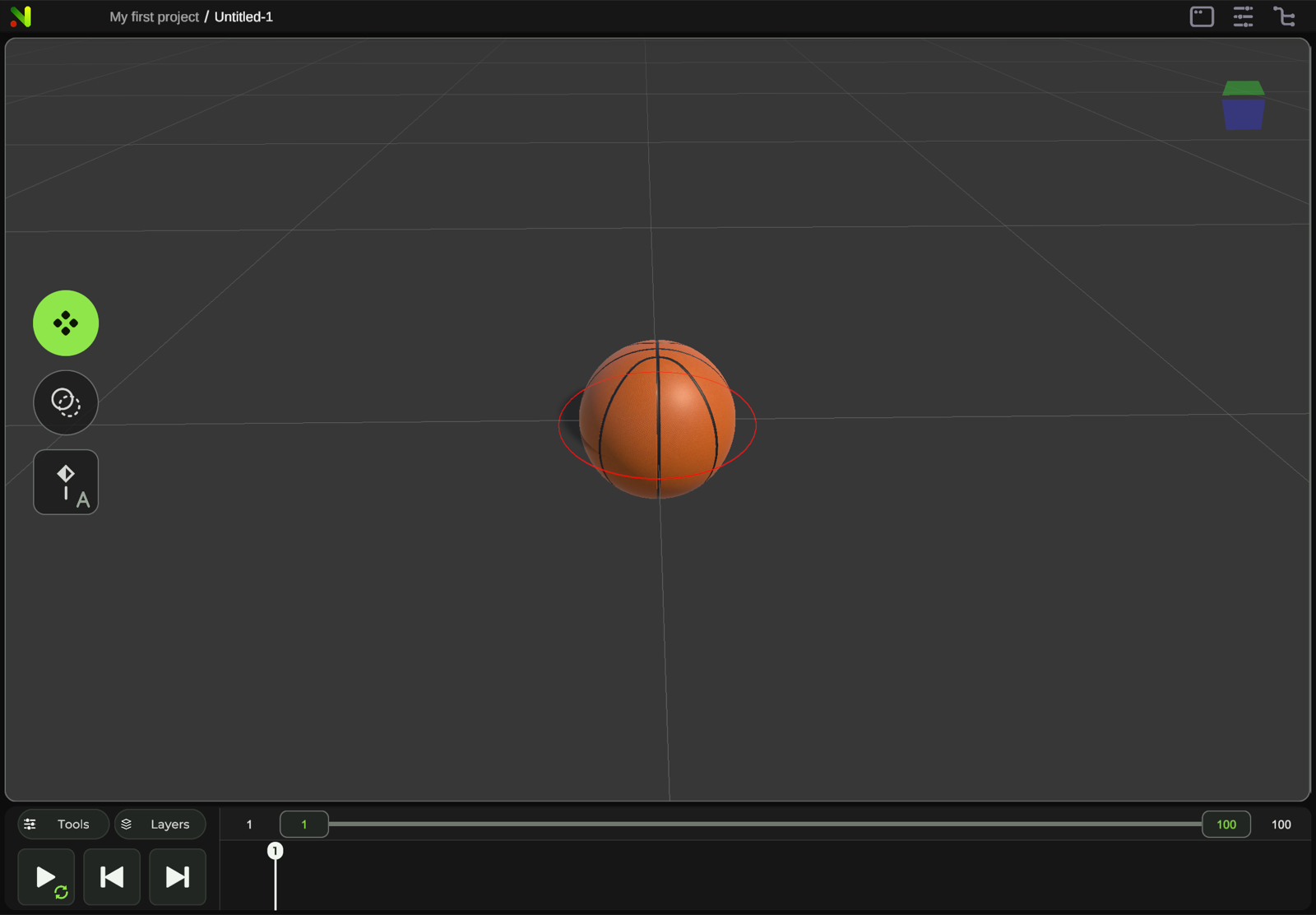
The editing screen is made of panes: rounded areas with a thin outline and a small gap between them. A new scene has four: the 3D view, the timeline, and the Scene Hierarchy and the Inspector, which start closed at the right edge.
You can split a 3D view to get one more pane beside it, and choose what the new pane shows. Typical reasons:
- See the scene from the front and from the side at once, so you can place something without turning the view back and forth.
- Look through your own camera in one pane while you move things in another.
- Keep a tool such as the Graph Editor or Auto Motion open next to the scene.
The current pane
The pane you touched last is the current pane. Its outline is green; the others are grey. Tap any pane to make it current.
It matters for a few actions that have to know which pane you mean:
- Double-tapping the pie key brings the selection into view in the current pane.
- A pane you just made by splitting is current straight away.
Each 3D view keeps its own camera and its own settings for the grid and the handles. Selecting an object, however, selects it in every pane.
Split a view
- Tap the split button in the header. Every pane gets a frame, and panes that can be split show the hint To split view, drag your finger/pen vertically or horizontally.
- Drag a line across the pane you want to cut. Drag sideways to cut it into an upper and a lower pane. Drag up or down to cut it into a left and a right pane. The pane is cut where your line is, so drag through the middle for two equal halves.
- Lift your finger. The line has to be long enough: while it is too short it is drawn in red, and letting go then does nothing.
- The new pane shows a list. Tap what it should show.
Split mode ends by itself after a split. To leave it without splitting, tap the split button again.
Only 3D views and tool panes can be split. The timeline, the Scene Hierarchy and the Inspector cannot.
You do not have to split by hand to open a tool. Tools on the timeline opens the Graph Editor, Auto Motion, the AR view and Face Tracking in a new pane beside the scene. See Animation tools at a glance.
What a pane can show
| In the list | What the pane shows |
|---|---|
| Perspective | An ordinary 3D view that you can turn freely. This is what the main view is. |
| Top, Bottom, Front, Back, Left, Right | A 3D view that looks straight from that side. It is flat, without depth, which makes lining things up easy, and its rotation starts locked so it stays straight. See Navigating the 3D view. |
| Camera Node | The picture seen through a camera you placed in the scene. Tap Tap and select camera node in the pane and pick the camera. See Cameras. |
| Graph Editor | The movement of the selected object drawn as curves, for fine control of speed. See Graph Editor. |
| Auto Motion | Ready-made movements such as bounce and sway that you adjust with sliders. See Auto Motion. |
| AR | Your scene placed in the real room, seen through the device's camera. See Augmented Reality. |
| Face Tracking | Your face, read by the front camera, moves a character's face. See Face tracking. |
| Environment recorder | Films your surroundings together with the movement of the device. See Environment Recorder. |
The three camera-based entries, AR, Face Tracking and Environment recorder, are listed only on devices that support AR.
Rules
| Rule | What Naomi says |
|---|---|
| Only one camera-based pane at a time. AR, Face Tracking and Environment recorder all use the device's camera, so opening a second one is refused. | View already exists. Only one AR view is allowed. |
| Only one Graph Editor. | View already exists. Only one Graph Editor view is allowed. |
| Only one Auto Motion pane. | View already exists. Only one Auto Motion view is allowed. |
| Face Tracking needs a device with a face-sensing front camera. | Face Tracking not supported. |
After a refusal the pane keeps showing the list, so you can pick something else. You can have several ordinary 3D views and several Camera Node panes.
Resize and swap panes
- Resize: drag the gap between two panes. The gap lights up while you drag.
- Open the Scene Hierarchy or the Inspector: tap its button in the header, or drag its edge in from the right. See Scene Hierarchy & Inspector.
- Swap two panes: tap the split button in the header. A swap button appears on the gap between panes that can change places. Tap it and the two panes trade positions.
Close a pane
| Pane | How to close it |
|---|---|
| Auto Motion, Graph Editor, AR, Face Tracking | Tap the small ✕ in the top right corner of the pane. In Auto Motion the ✕ is shown only while no motion has been added yet. |
| Any other pane you made, such as a second 3D view or a Camera Node pane | Tap the split button in the header, then tap the remove button on that pane. |
| Timeline, Scene Hierarchy, Inspector | These cannot be removed. The Scene Hierarchy and the Inspector can be closed to the edge with their header buttons. |
The remove button works on every pane that can be closed, including the four in the first row. Closing a pane does not change your scene. A closed Graph Editor or Auto Motion pane opens again with your work still there.
Naomi does not let the screen drop below its basic layout. When a pane cannot be removed, its ✕ and its remove button are simply not shown. Keep at least one 3D view open.
Full screen
Full screen lets one 3D view fill the whole screen, for example to watch your animation without distractions.
- Tap empty space so that nothing is selected.
- Hold the pie key, touch the view you want and choose full screen.
- To come back, tap the button shown on the full-screen view.
In full screen, tap three times quickly to hide the softkeys, and three times again to show them.
iPhone and small iPads
Everything on this page works the same on an iPhone. There is less room, so a few habits help:
- Two panes side by side are usually the practical limit. Close a tool pane when you are done with it.
- Prefer the ✕ on tool panes. The buttons of split mode are small on a phone.
- Close the Scene Hierarchy and the Inspector while you work in the 3D view, and use full screen to check the result.
The tools in the Asset Factory
The tools in the Asset Factory open with their own layout: one 3D view and the tool's panel beside it. In Humanoid Rigging, Custom Rigging and Generate 3D the split button is not shown, so the layout stays as it is. You can still drag the gap to resize, and the gestures in the 3D view are the same.