
Pie menu reference
Every pie menu in Naomi, every item in it, what it does and when it shows.
How pie menus work
A pie menu is a ring of options that opens under your finger. Naomi has one for the 3D view, and smaller ones on the timeline, on some keys and in the Graph Editor. They all open the same way.
- Hold the green pie key with one finger.
- With another finger, touch the place the menu belongs to and keep it down. The ring appears around that finger.
- Slide towards an option. It lights up.
- Lift your finger to choose it.
- An item that ends in three dots, such as save..., is a group. Slide into it and a second ring opens around your finger. Keep sliding to an item in that ring.
- Items keep their place. This page gives each place as a time on a clock face: 12 o'clock is straight up, 3 o'clock is to the right.
- Many items name what will happen, not how things are now. hide grid means the grid is showing and will be hidden.
- An item that cannot work right now is dimmed and does nothing, for example undo when there is nothing to take back.
| Touch this while holding the pie key | Menu |
|---|---|
| The 3D view, nothing selected | View pie |
| The 3D view, something selected | Selection pie |
| The keyframe strip of the timeline, or a small timeline in the Inspector | Keyframe pie |
| Play, previous, next, or the keyframe key | Key pies |
| The Graph Editor | Graph Editor pie |
| A position, rotation or scale number | Reset pie |
| The small axis widget of a view | Rotation lock pie |
| The 3D view inside an Asset Factory tool | Factory pies |
3D view, nothing selected: the view pie
This ring shows when no handle is selected. It also shows, even with a selection, in a view whose handles are hidden with hide effectors.
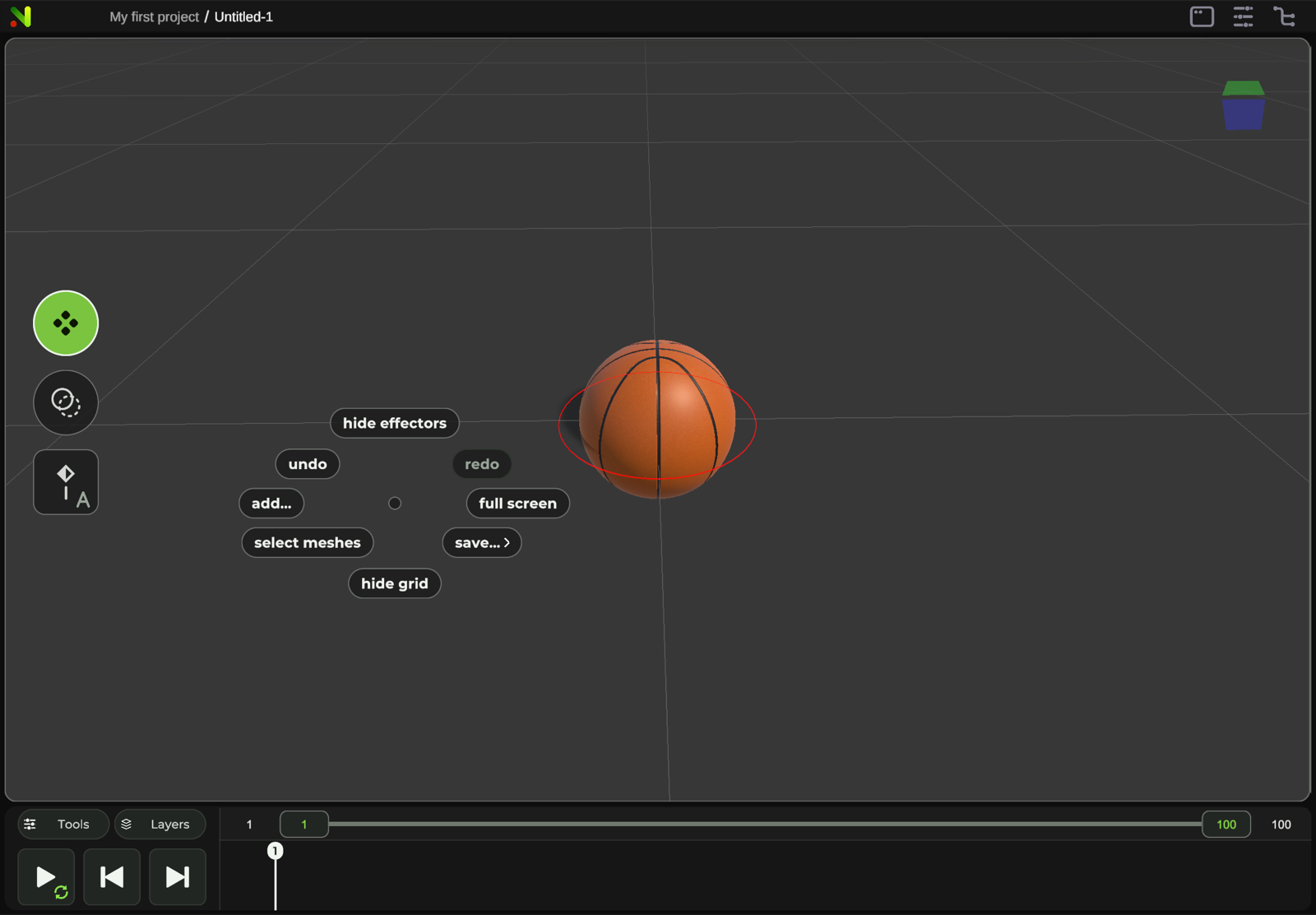
| Place | Item | What it does |
|---|---|---|
| 12:00 | hide effectors / show effectors | Hides or shows the handles in this view. Handles are called effectors here. With handles hidden you cannot select by tapping. |
| 1:30 | redo | Brings back the step you just undid. |
| 3:00 | full screen | Makes this view fill the screen. Tap three times quickly to hide or show the softkeys. |
| 4:30 | save... | A group. See The save... ring. |
| 6:00 | hide grid / show grid | Hides or shows the floor grid in this view. |
| 7:30 | select meshes | Shown while mesh selection is off. Turns it on, so a tap can pick one part of a model. See Mesh selection. |
| 7:30 | object | Shown instead while mesh selection is on and your finger is over a surface. A group with two items: inspect opens the Inspector for the part under your finger, and ignore meshes (at 12:00) turns mesh selection off. |
| 9:00 | add... | Opens the Assets library. |
| 10:30 | undo | Takes back the last step. |
Effectors, grid and mesh selection are set for each view by itself.
3D view, something selected: the selection pie
This ring shows when at least one handle is selected and handles are visible in the view.
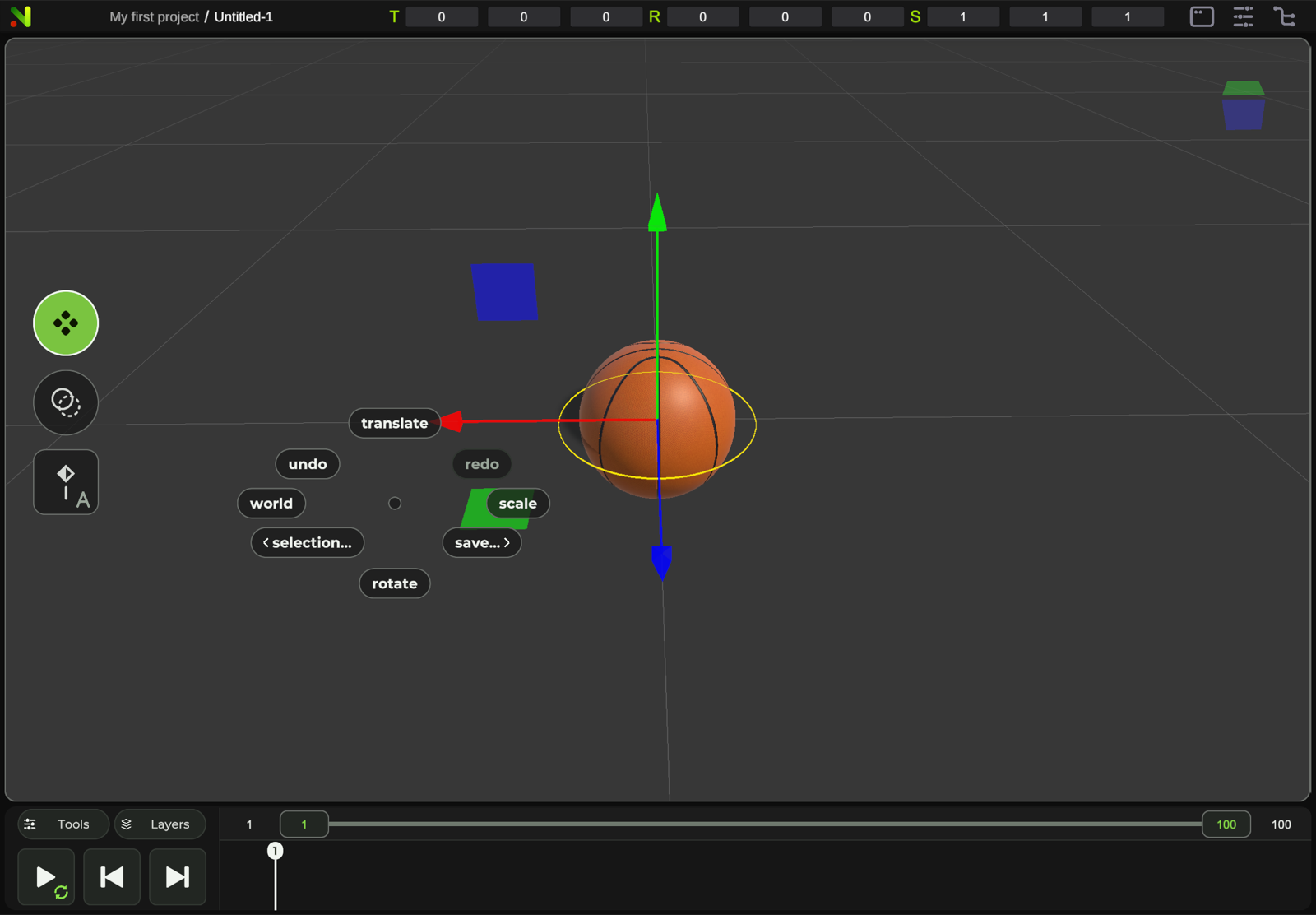
| Place | Item | What it does |
|---|---|---|
| 12:00 | translate | The gizmo moves the selection. |
| 1:30 | redo | Brings back the step you just undid. |
| 3:00 | scale | The gizmo resizes the selection. |
| 4:30 | save... | A group. See The save... ring. |
| 6:00 | rotate | The gizmo turns the selection. |
| 7:30 | selection... | A group. See The selection... ring. |
| 9:00 | world / local | Switches which way the gizmo points: lined up with the scene, or turned with the object. The item names the mode you will switch to. |
| 10:30 | undo | Takes back the last step. |
See Selection & moving objects for the gizmo.
The save... ring
Reached from both rings above.
| Item | What it does | When it shows |
|---|---|---|
| scene | Saves the scene under its current name. | Once the scene has been saved with a name. Before that, this place reads scene as. |
| scene as | Asks for a name and saves the scene as a new one. | Always. |
| video | Starts an export. Naomi asks you to tap the view to record. See Export & share. | Always. |
| animation | Saves the movement of the selected handles to the Animations tab of your library. | Always. With nothing selected it answers please select the object whose animation you want to save. If the selection has no keys: selection does not contain any animations. |
The selection... ring
Reached from the selection pie. Every item here acts on what is selected, except record.
| Place | Item | What it does |
|---|---|---|
| 12:00 | Bake / Stop | Turns movement that comes from constraints into ordinary keyframes. While a bake runs, the item reads Stop and cancels it. See Baking keyframes. |
| 1:30 | motion capture... | A group for human characters. from photo copies a pose from a picture. from video turns a filmed movement into animation, and shows only on devices that can run it. See Motion capture. |
| 4:30 | delete | Removes the whole selected object. Shown in red, because it cannot be undone and clears the undo history. |
| 6:00 | record / stop recording | Starts or stops recording. While recording, the timeline plays and whatever you drag is saved as keys. See Realtime animation. |
| 7:30 | inspect | Opens the Inspector for the handle you selected last. |
| 10:30 | duplicate | Makes a copy of each selected object, with its animation and settings, in the same place. Naomi then shows how many objects were duplicated. |
The place at 3:00 is empty on purpose, so a finger that slips past motion capture... does not land on delete.
Timeline: the keyframe pie
Hold the pie key and touch the keyframe strip of the timeline. What you get depends on where you touch.
Outside a selection box
| Place | Item | What it does |
|---|---|---|
| 3:00 | next keyframe | Jumps to the next key of the selected object. |
| 9:00 | previous keyframe | Jumps to the key before. |
Inside a selection box
First box some keys: hold the selection key and drag across the strip. Then hold the pie key and touch inside the box. The items change the movement between the boxed keys.
| Place | Item | What it does |
|---|---|---|
| 12:00 | smooth | One flowing curve through the keys. |
| 1:30 | linear | Steady speed, with a sharp change at each key. |
| 3:00 | euler | Repairs a rotation that spins the long way round between two keys. |
| 9:00 | flat | Starts gently and slows into the next key. |
| 10:30 | constant | No in-between. The value holds, then jumps. |
The small timeline on a row in the Inspector has the same pie, with fewer items. It has no euler. On some material rows only constant is offered. Rows of the Node, Particle System and Humanoid Control Rig cards have no pie. See Keyframes & Timeline.
Pies on keys
Hold the pie key and press one of these keys. Each opens a ring with one item, which names what you will switch to.
| Key | Item | What it does |
|---|---|---|
| Play, on the timeline | Repeat Off / Repeat On | Chooses whether the animation starts again when it reaches the end. |
| Previous or next, on the timeline | step by keyframe / step by frame | Chooses whether the two keys jump from key to key or move one frame. Naomi normally decides by itself: by key when the selection has keys, by frame when it has none. |
| Previous or next | automatic | Shown at 2:00 only after you chose a step mode yourself. Gives the choice back to Naomi. A new selection does the same. |
| Keyframe key (softkey) | Auto Off / Auto On | Switches automatic keys. With Auto on, moving an object that already has keys adds a key by itself. |
Graph Editor pie
Hold the pie key and touch the graph. Every place always means the same thing. A place whose action is not possible right now is left empty.
| Place | Item | What it does | When it shows |
|---|---|---|---|
| 12:00 | frame all / frame selected | Fits all curves, or the selected keys, into view. | Always. It reads frame selected when keys are selected. |
| 1:30 | redo | Brings back the step you just undid. | Always. |
| 4:30 | tangents | A group that sets the shape of the curve at the selected keys: smooth, spline, linear, flat, constant. unify joins the two handles of a key again after you bent them apart. | Keys are selected. |
| 6:00 | insert key | Adds a key at the current frame on the selected curve, without changing its shape. | A key or a curve is selected. |
| 7:30 | view | A group. absolute shows real values. normalized draws all curves at a similar height. renormalize fits them again and shows only in normalized view. channels shows or hides the list of curve names. | Always. |
| 9:00 | delete | Deletes the selected keys. | Keys are selected. |
| 10:30 | undo | Takes back the last step. | Always. |
See Graph Editor.
Numbers and the axis widget
Reset pie
Hold the pie key and touch a position, rotation or scale number, in the header or on the Node card of the Inspector.
| Item | What it does |
|---|---|
| reset X, reset Y or reset Z | Sets the one value you touched back to its starting value. |
| reset position, reset rotate or reset scale | Resets all three values of that row. |
| reset all | Resets position, rotation and scale together. |
Rotation lock pie
Hold the pie key and touch the small axis widget in the corner of a 3D view.
| Item | What it does |
|---|---|
| lock rotation | Stops this view from turning when you drag. Sliding and zooming still work. A lock icon shows on the widget. |
| unlock rotation | Shown instead while the view is locked. Lets it turn again. |
See Cameras.
Asset Factory pies
The tools in the Asset Factory have their own, shorter rings in their 3D view.
Humanoid Rigging and Custom Rigging
| Place | Item | What it does |
|---|---|---|
| 12:00 | translate | The gizmo moves the selected marker or joint. |
| 1:30 | redo | Brings back the step you just undid. |
| 3:00 | scale | The gizmo resizes. |
| 6:00 | rotate | The gizmo turns. |
| 7:30 | selection... | A group. Shown only in the cases below. |
| 9:00 | world / local | Switches which way the gizmo points. |
| 10:30 | undo | Takes back the last step. |
Humanoid Rigging: selection... shows when you have added bones of your own and something is selected. It holds delete, which removes the selected bones you added. The ready-made markers cannot be deleted.
Custom Rigging: selection... shows while you are placing joints and a joint is selected. After the model is bound to the skeleton it is gone.
| Place | Item | What it does |
|---|---|---|
| 10:30 | create two bone IK / remove two bone IK | Marks the selected joint as the end of a limb of three joints, such as hip, knee and foot, so that moving the end bends the middle. The item reads remove two bone IK when every selected joint is already marked. |
| 12:00 | create damped / remove damped | Marks a chain, such as a tail, to trail loosely behind the joint above it. |
| 1:30 | create chain IK / remove chain IK | Marks a chain of three or more joints to bend as one when its end is moved. |
| 4:30 | delete | Deletes the selected joints. Here it can be undone. |
| 7:30 | inspect | Opens the Inspector for the joint, where you can rename it. |
These items are never dimmed. If a joint does not fit, Naomi does nothing and tells you what is needed. See Custom Rigging.
Minifigure Factory
| Item | What it does |
|---|---|
| save..., then asset | Saves the figure to your library. |
| save..., then asset as | Saves it under a new name. |
| object, then inspect | Shows the part under your finger in the Inspector. Shown when your finger is over the figure. |
See Minifigure Factory.
Generate 3D
The 3D view of the model generator uses the view pie and the selection pie, with the items that need a scene left out: there is no duplicate, Bake, record, motion capture... or inspect.
If an item is missing
| You are looking for | Check |
|---|---|
| translate, selection..., duplicate, delete, record | Select a handle first. If handles are hidden in this view, choose show effectors. |
| add..., full screen, show grid, select meshes | Tap empty space to deselect. These are in the view pie. |
| ignore meshes | It is inside object, which shows when mesh selection is on and your finger is over a surface. |
| from video | It shows only on devices that can run video motion capture. |
| automatic | It shows only after you picked step by frame or step by keyframe yourself. |
| Nothing opens at all | The pie key must be held down before the second finger touches. |