
Undo & redo
Take back a step you did not mean, bring it back again, and know which actions cannot be taken back at all.
What undo and redo do
Naomi remembers the steps you make while you work in a scene: moving an object, adding a keyframe, selecting something. This list of steps is the undo history.
- Undo takes back the most recent step. Use it again to take back the one before, and so on.
- Redo brings back a step you just undid.
Example: you drag a character's hand and it ends up behind its back. Tap once with two fingers and the hand is where it was. If you decide the new place was better after all, tap once with three fingers and it returns there.
As in most programs, redo only works straight after an undo. Once you make a new step, the steps you had undone are gone.
Some actions cannot be undone, and a few of them empty the whole undo history. The most important one is deleting an object. Read What cannot be undone and save before anything you are unsure about.
Where the commands are
| Way | Undo | Redo |
|---|---|---|
| Gesture | Tap once with two fingers | Tap once with three fingers |
| Pie menu of the 3D view | undo, at the upper left of the ring | redo, at the upper right of the ring |
| Pie menu of the Graph Editor | undo | redo |
| Keyboard attached to an iPad | See Keyboard shortcuts. | |
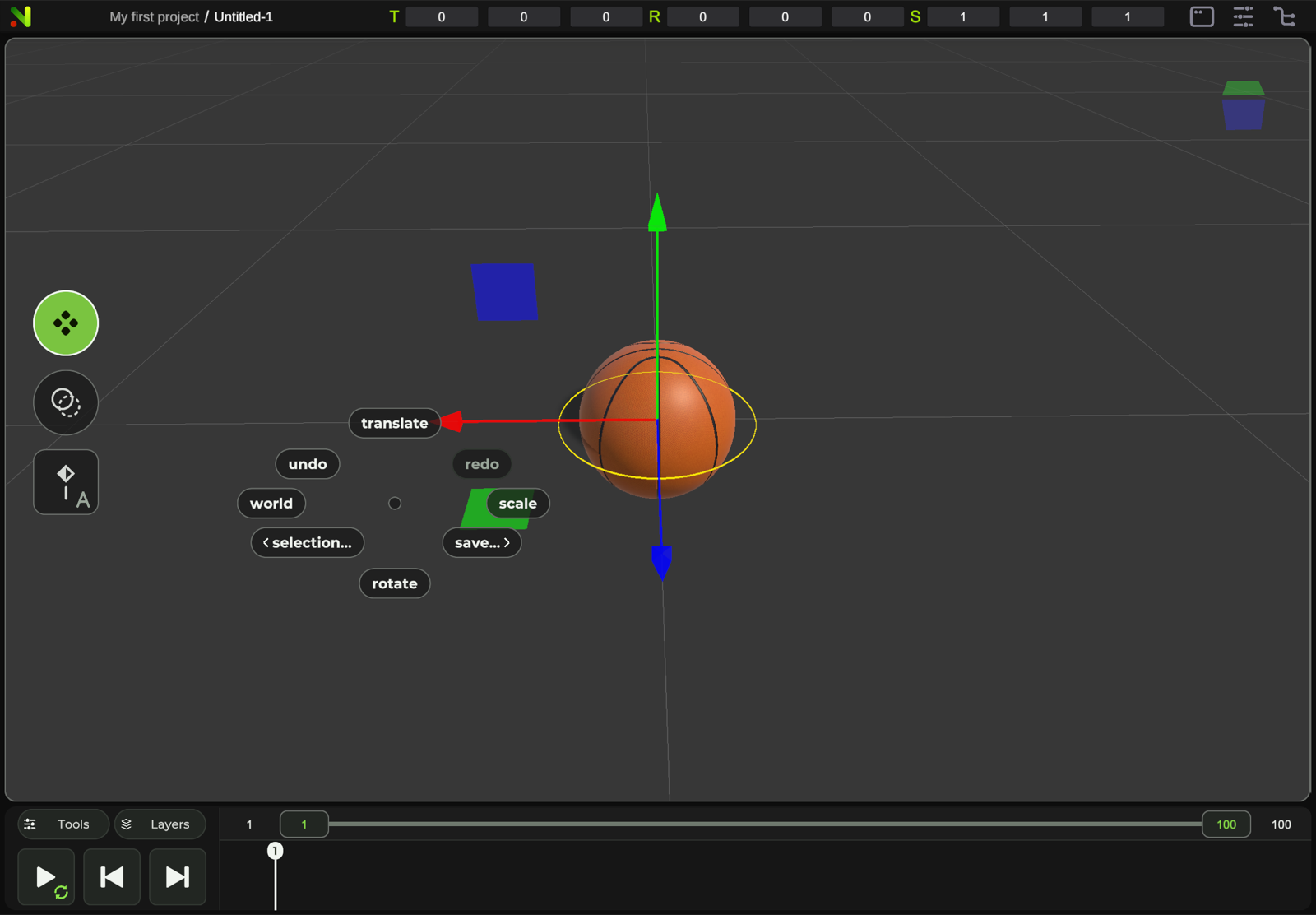
To use the pie menu, hold the green pie key, touch the 3D view with another finger, slide to undo or redo and let go.
- The two-finger and three-finger taps work anywhere on the editing screen. They do nothing while a window is open in front of the scene or while the Scene Menu is open.
- When there is nothing to take back, undo in the pie is dimmed. The same goes for redo.
- After each step back or forward, a short message at the top of the screen says undo or redo, so you know the tap was counted.
The undo button in messages
Some messages carry their own undo button, so you can take the action back with one tap while the message is showing. The message after a bake is the main example: it tells you how many objects were baked and offers undo. See Baking keyframes. Tapping that button is the same as one ordinary undo.
What can be undone
| Action | One undo takes back |
|---|---|
| Moving, turning or resizing with the gizmo | One drag. |
| Typing or dragging a position, rotation or scale number, in the header or on the Node card | One edit. |
| Resetting position, rotation or scale | The reset. |
| Selecting and deselecting | One change of selection. This is why undo sometimes seems to do nothing: it took back a tap that selected something. |
| Adding, moving, deleting and reshaping keyframes, on the timeline and in the Graph Editor | One change. |
| Applying an animation from the library | All the new keys. See Animation library. |
| A pose from a photo, an animation from a video | The whole result. See Motion capture. |
| Auto Motion: Apply | The new keys, and your motions come back with their settings. See Auto Motion. |
| Bake | The baked keys, and the constraint is switched on again. |
| Animation layers: adding, deleting and merging layers, changing weight, adding and removing objects | One change. See Animation layers. |
| Duplicate | All the copies made in that step. |
| Moving a Camera Node by looking through it | One move. See Cameras. |
| Recording a movement in real time | The take, but a little at a time and not in one step. For a long take, deleting the keys is quicker. See Realtime animation. |
Undo also works inside the rigging tools, where it takes back marker and joint moves. See Humanoid Rigging and Custom Rigging.
What cannot be undone
| Action | What to do instead |
|---|---|
| Deleting an object from the scene | Nothing brings it back. If you saved before deleting, leave the scene without saving and open it again. |
| Changes on Inspector cards other than Node, for example a light's colour, a material or a filter setting | Set the value back by hand. |
| A key made with the small keyframe button on an Inspector row | Delete the key on that row's small timeline. |
| Adding or deleting a card in the Inspector | Delete the card with its ⋮ menu, or add it again. |
| Saving a scene, and Save As | A save replaces what was stored. Use Save As with a new name to keep an older version. |
| Renaming or deleting projects, scenes and library assets | Naomi asks before it deletes. There is no way back afterwards. |
| Turning, sliding and zooming the view, splitting and closing panes | These do not change your scene, so they are not steps. Just navigate back. |
| Custom Rigging: Clear Skeleton | Naomi asks Remove all joints? first. |
| Humanoid Rigging: Back to Setup | Naomi asks Discard marker placement? first. |
What clears the undo history
A few actions throw away the whole history. After them, undo cannot reach any earlier step, even ones that could normally be undone.
| Action | What you see |
|---|---|
| Deleting an object, from the pie menu (selection..., then delete) or from the Inspector | The message undo history cleared. |
| Undoing the step that added an object from the Assets library. The object is removed for good. | The message undo history cleared. |
| Leaving the scene: going to the main menu, opening another scene, or opening a tool in the Asset Factory | No message. A scene always opens with an empty history. |
| In the rigging tools: moving between stages, for example from the finished rig back to placing markers | No message. |
Saving does not clear the history. You can save and still undo the steps before the save. Closing Naomi does: the history is not stored with the scene.
Before you delete an object, or try something you may regret, save the scene. If it goes wrong, leave the scene, choose Don't Save and open it again. That brings back everything, including what undo cannot.
Troubleshooting
| Problem | Why, and what to do |
|---|---|
| I tapped with two fingers and nothing changed. | The step that was taken back may have been a selection. Tap again. If a window or the Scene Menu is open, close it first. |
| The two-finger tap moves the view instead. | The fingers moved while touching. Tap briefly without sliding, or use undo in the pie menu. |
| undo is dimmed in the pie. | The history is empty. You just opened the scene, or an action cleared it. |
| Undo will not bring back my deleted object. | Deleting is permanent. See the safe habit above. |
| I undid too far. | Tap with three fingers, or choose redo, once for each step, before you do anything else. |
| A setting in the Inspector did not come back. | Only the Node card is part of the history. Set other values back by hand. |