
Settings and languages
Where to change the language, manage your plan and permissions, and what happens to your work when you change devices or reinstall.
Where the settings are
Naomi has no single settings screen. Each setting sits next to the thing it changes. This table shows where to look.
| You want to change | Where it is |
|---|---|
| The language of the app | Main menu, bottom centre: Language: English. |
| Your plan (Naomi Pro) | Main menu: Subscribe. Cancelling is done in the App Store. |
| Credits for generating models | Generate 3D, in the Credits section. |
| Camera and Photos permission | The iOS Settings app, under Naomi. |
| Playback speed of a scene | In the scene, on the Environment item: the Play Mode card. Pro |
| Showing where fingers touch the screen | In the scene, on the Environment item: the Touch Indicators card. |
| The floor grid and the selection handles | The pie menu of each view: show grid / hide grid and show effectors / hide effectors. |
| Video size, orientation and logo | The Export Video window. See Export & share. |
The settings that belong to a scene are described in Environment and User Interface.
Change the language
Naomi is available in seven languages: English, Czech, German, French, Spanish, Portuguese and Italian.
- Go to the main menu (Home).
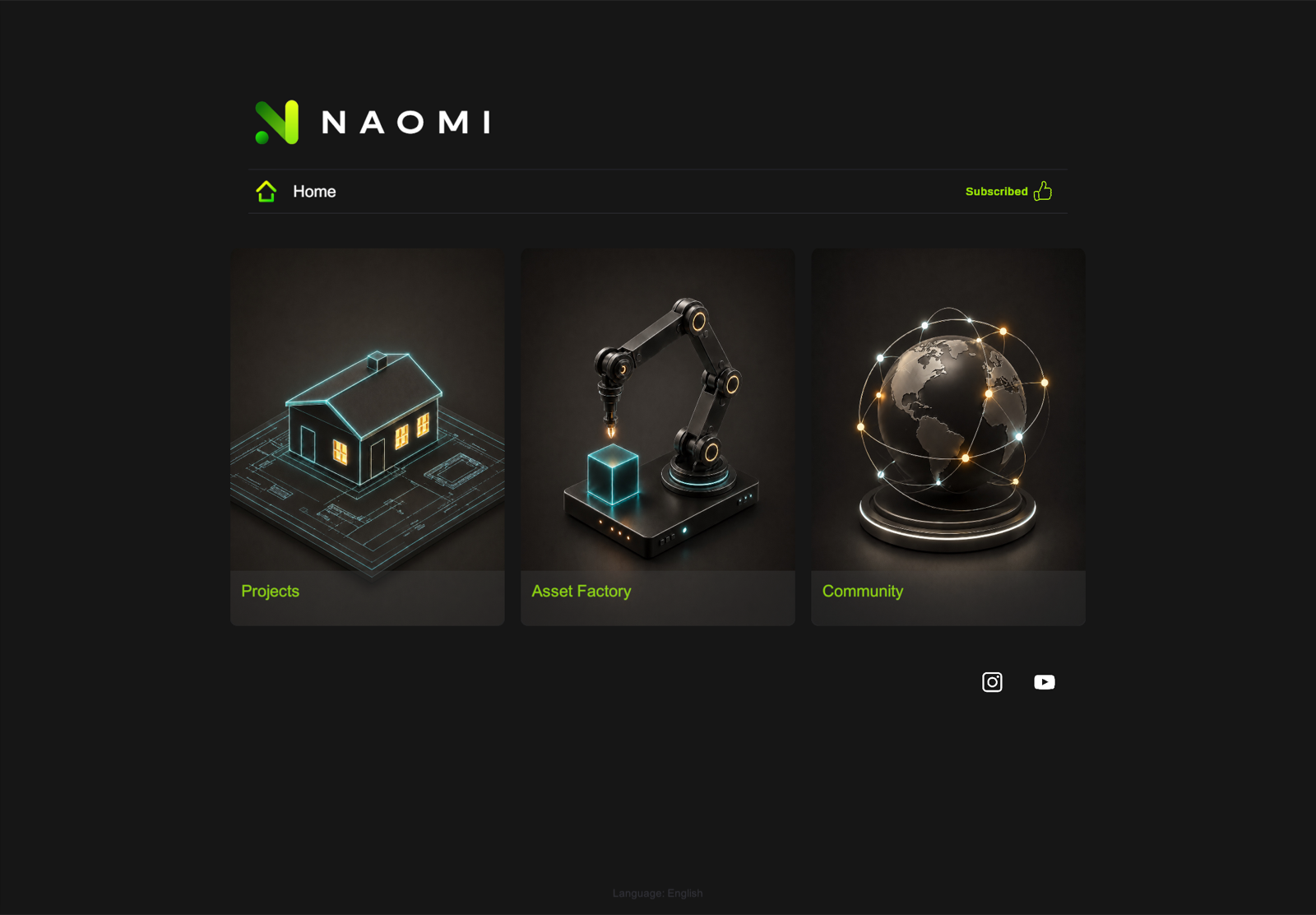
- Tap Language: English at the bottom centre. The word after the colon is the language in use now.
- Tap the language you want. The one in use has a check mark.
- The first time you open Naomi, it uses the language of your device if it is one of the seven. Otherwise it starts in English.
- Naomi remembers your choice on this device.
- The language changes the texts of the app only. Names you typed yourself, such as project and scene names, stay as they are.
- This documentation quotes the English labels. In another language the buttons sit in the same places.
Your plan: subscribe, restore, cancel
On the main menu, Subscribe opens the Naomi Pro screen. When your plan is active the button reads Subscribed, and the screen says Your plan is active.
| Task | How |
|---|---|
| Start Naomi Pro | Open the Naomi Pro screen, choose Monthly or Annually and confirm with the App Store. |
| Get your plan back on a new device or after reinstalling | Open the Naomi Pro screen and tap Restore Purchases. Use the Apple ID you subscribed with. Naomi answers Restore succeeded. or Restore failed. Please check your internet connection. |
| See or change an active plan | Open the Naomi Pro screen and tap Manage Subscriptions. |
| Cancel | Open the App Store, tap your profile picture, tap Manage Subscriptions, choose Naomi and tap Cancel Subscription. The plan renews by itself until you do this. |
| Read the legal texts | Terms of Use and Privacy Policy are linked on the Naomi Pro screen. |
If Naomi says In-app purchases are not available. Please check your internet connection., the App Store could not be reached. Try again when you are online.
What each plan includes is listed in Free, Pro & credits.
Permissions
iOS asks for a permission the first time a feature needs it. You can change your answer at any time in the iOS Settings app, under Naomi.
| Permission | Needed for |
|---|---|
| Camera | Augmented Reality, the Environment Recorder and Face Tracking. |
| Photos | Choosing a picture or a video of your own, for example for a pose from a photo or for generating a 3D model. iOS may ask the first time you pick one. |
Without the camera permission Naomi shows Camera access is not authorized. The Settings button in that message takes you to the right place. If your scene has unsaved changes, Naomi asks you to save first.
An internet connection is needed only for some features: generating 3D models, buying or restoring, downloading extra assets and the in-app tutorial list. Animating, rigging and exporting work offline.
Where your work is stored
| What | Where it lives | Follows you to another device? |
|---|---|---|
| Projects and scenes | On this device, inside Naomi. | No. Share them as a file. See below. |
| Assets library: models, animations, recordings | On this device, inside Naomi. | No. Share them as a file. |
| Naomi Pro subscription | With your Apple ID. | Yes, after Restore Purchases. |
| Credits balance | In your iCloud account. | Yes, on devices signed in to the same iCloud account. |
| Language and other choices Naomi remembers | On this device. | No. |
| The one-time download for animation from video | On this device. | No. It is downloaded again when needed. |
Your scenes are not uploaded anywhere. If the app is deleted, the work stored inside it is deleted with it. Keep a copy of anything important as a shared file.
Credits need iCloud. If you are signed out, Naomi says Cloud storage is not available. Please sign in to iCloud to access your credits. If you switch to a different iCloud account, Naomi shows iCloud Account Changed: your credits stay with the first Apple ID, and you see them again when you sign back in to it.
Move to a new device, or reinstall
Before you delete the app or give the device away
- On the main menu, open Projects and tap Edit.
- Select the projects you want to keep and tap Share.
- Naomi asks whether to export with assets, for one project Do you want to export the project with its assets? Answer Yes. The file then carries your models too.
- Save the file outside Naomi: in the Files app, in iCloud Drive, or send it to yourself.
Models, animations and recordings that are not used in any project can be shared the same way from the Assets library.
On the new device, or after reinstalling
- Install Naomi and open it.
- If you have Naomi Pro, open the Naomi Pro screen and tap Restore Purchases.
- Open Projects, tap Import and pick your file.
- Choose your language again if needed.
Your credits appear by themselves once the device is signed in to the same iCloud account. Animation from video asks for its one-time download again the first time you use it.
The steps for sharing are described in full in Projects and scenes.
Updates and the version number
- Naomi is updated through the App Store. Some updates are required: Naomi then shows Update Required with the text A new version of Naomi is available. Please update to continue. Tap Update Now.
- The version of the app you are running is shown at the very bottom of the Scene Menu, inside a scene. Mention it when you ask for help.