
Navigating the 3D view
How to look around your scene: turn the view, slide it, move closer, jump to an object, and look straight from the front, the side or the top.
What navigating means
The 3D view shows your scene the way a camera would. You are holding that camera. Navigating means moving it so you can see what you are working on. It never changes the scene itself: nothing is moved, and nothing is saved as animation.
Example: you want to put a cup into a character's hand. From the front it looks right. You turn the view to the side and see that the cup floats well in front of the hand. Looking from more than one direction is the only way to place things correctly in 3D, so these gestures are worth learning first.
The camera you navigate with is only for working. It is not an object in the scene. For the final shot you can add a camera of your own, a Camera Node, and look through it. See below and Cameras.
The three gestures
| Gesture | Name | What happens |
|---|---|---|
| Drag one finger on empty space | Orbit | The camera circles around the point it is looking at. Use it to see an object from another side. |
| Drag two fingers together | Pan | The camera slides sideways or up and down, without turning. |
| Pinch two fingers apart or together | Zoom | The camera moves closer or further away. |
- Start a one-finger drag on empty space. A drag that starts on the arrows of a selected object moves that object.
- The further you are from what you look at, the bigger each pan and zoom step is. Close up, the same gesture moves the camera only a little, so fine work stays easy.
- When you pinch in very close, the camera does not stop at the point it was circling. It keeps travelling forward through the scene.
- Each 3D view has its own camera. Navigating in one pane does not change another. See Views & split screen.
Jump to the selected object
This is the fastest way to get your bearings, and the cure for being lost.
- Select an object. If you cannot see it, open the Scene Hierarchy and tap its row.
- Double-tap the green pie key.
The camera moves so the selection fills the middle of the view, and from then on it orbits around that object. Double-tapping the selection key does the same.
- It works in the pane with the green outline, the one you touched last.
- With several things selected, the view fits all of them.
- In the Graph Editor the same double-tap fits the curves into view.
If the view shows nothing but background, select any object in the Scene Hierarchy and double-tap the pie key.
The axis widget
Each 3D view has a small widget with three coloured lines in its corner. The lines are the three directions of the scene: red is X (sideways), green is Y (up) and blue is Z (forward and back). The widget turns as you orbit, so it always shows which way you are looking.
It is also a control:
| Do this | What happens |
|---|---|
| Tap the end of an axis | The camera turns to look straight along that axis: from the front, the back, the left, the right, the top or the bottom. |
| Tap the centre | Switches between perspective and flat view. Touching and holding the widget for half a second does the same. |
| Hold the pie key and touch the widget | Opens a small pie with lock rotation or unlock rotation. |
Perspective and flat view
- Perspective is how eyes and cameras see: things far away look smaller. Use it to judge how the scene will look.
- A flat view (3D programs call it orthographic) has no depth: an object keeps its size however far away it is, and lines that are parallel stay parallel. Use it to line things up, for example to check that two feet stand on the same floor.
Lock and unlock rotation
A view can have its rotation locked, so a stray drag does not tilt it. This matters most in the straight-on views.
- Views opened as Top, Bottom, Front, Back, Left or Right start flat and locked. A Perspective view starts unlocked.
- If you drag one finger in a locked view, Naomi shows camera rotation locked with an unlock button. Tap it to turn the view freely.
- To lock or unlock by hand, hold the pie key, touch the axis widget and choose lock rotation or unlock rotation.
- While a view is locked, a lock icon shows on its axis widget.
Pan and zoom always work, locked or not.
Grid, handles and full screen
Three settings change what a view shows. With nothing selected, hold the pie key, touch the view and choose one of these. Each is set for one view at a time.
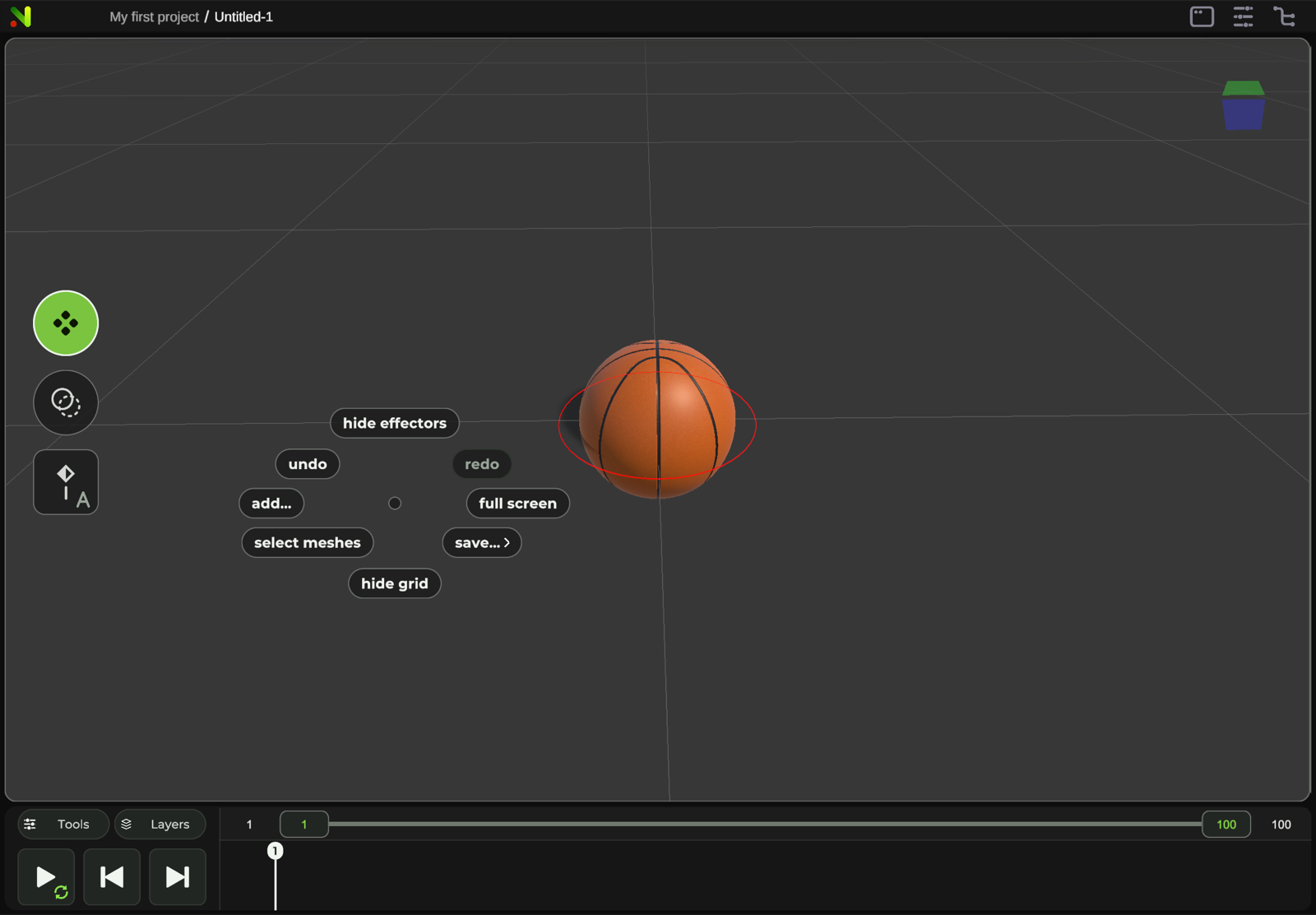
| Pie item | What it does |
|---|---|
| hide grid / show grid | Hides or shows the floor grid. The grid marks the ground and helps you judge size and distance. Hide it to see the picture as it will be exported. |
| hide effectors / show effectors | Hides or shows the handles you tap to select objects. With handles hidden, a tap selects nothing in that view. |
| full screen | Makes this view fill the screen. A button on the view brings the panes back. Tap three times quickly to hide or show the softkeys. |
The item names what will happen, not how things are now: hide grid means the grid is showing.
Look through a camera of your own
To see exactly what your film will show, look through a Camera Node.
- Open the Assets library and add Camera Node from the Default section.
- Split the view and choose Camera Node for the new pane.
- Tap Tap and select camera node and pick your camera.
In that pane the same three gestures now move the Camera Node itself, so you frame the shot by looking through it. Unlike ordinary navigating, this changes the scene, and each move is one undo step. The full story, including how to animate the camera, is in Cameras.
Troubleshooting
| Problem | What to do |
|---|---|
| The view will not turn. | Its rotation is locked. Tap unlock in the message, or use the pie on the axis widget. |
| Dragging moves an object instead of the view. | The drag started on the object's arrows. Start on empty space, or tap empty space first to deselect. |
| The camera circles around the wrong spot. | Select the object you care about and double-tap the pie key. The camera then orbits around it. |
| Everything looks flat and far things are not smaller. | The view is in flat mode. Tap the centre of the axis widget. |
| Zooming is very slow or very fast. | Steps depend on the distance to the point the camera looks at. Select something near your work and double-tap the pie key. |
| I cannot find the pie items for grid or full screen. | They are in the view pie, which opens only with nothing selected. Tap empty space first. |