
Baking Keyframes
Bake writes down what an object is doing on every frame as ordinary keyframes. Use it when the movement comes from something else, such as a constraint, and you want to edit it by hand.
Read Keyframes & Timeline first. Bake is free.
What baking is
Usually an object moves because you gave it keyframes. But an object can also move because something drives it. A constraint is the common case: a cup with a Parent Constraint follows the hand that holds it. The cup moves on screen, but it has no keys of its own. There is nothing to select on the timeline and nothing to see in the Graph Editor, so you cannot nudge one frame or soften the ending.
Baking solves this. Naomi goes through the timeline frame by frame, looks at where the object really is, and saves that as a keyframe. Then it switches the constraint off, because the keys now do its job.
Example: a character carries a box across the room and puts it down. The box follows the hands through a Parent Constraint. After a bake the box has its own keys for the whole walk, and you can adjust how it lands.
Bake the selected objects
- Select the object or objects whose movement you want as keys. For a character, select the handles.
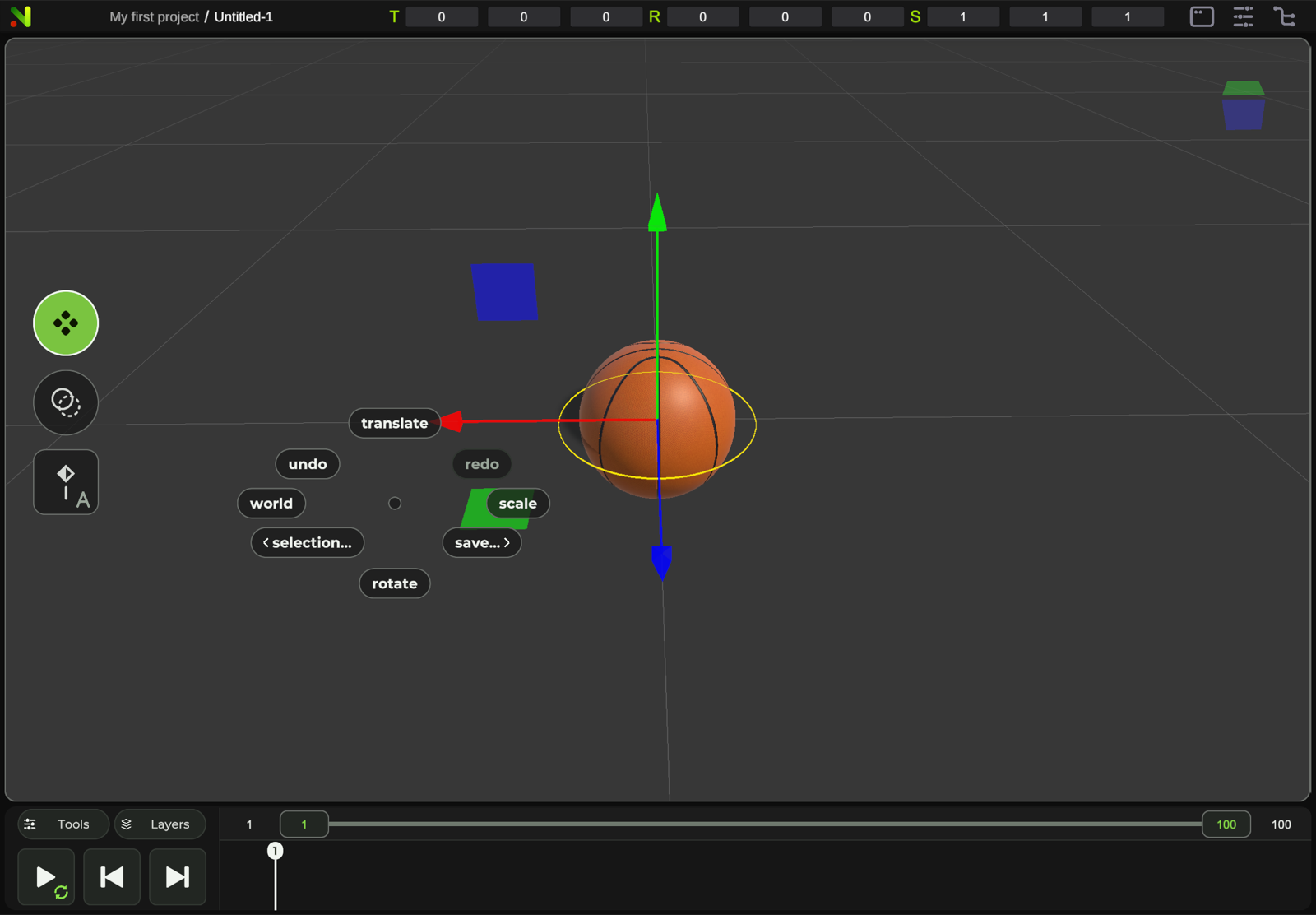
- Hold the pie key and touch the 3D view. Choose selection..., then Bake, at the top of the ring.
- Watch the timeline. Playback stops, the marker jumps to the first frame, waits about a second, then steps through every frame to the end.
- When it is done you see a message such as 1 object(s) baked to keyframes - their drivers are now off. The message has an undo button.
The moving timeline marker is the only sign of progress. While it steps, you cannot drag the selected objects, and the layers row is dimmed. Afterwards the marker returns to the frame you were on.
Stop a bake
While a bake is running, open the same pie again: hold the pie key, touch the 3D view and choose selection.... The item at the top now reads Stop. Choose it.
A stopped bake leaves everything as it was. No keys are written, the constraint keeps working, and you see bake cancelled - nothing changed.
What changes afterwards
| Thing | After the bake |
|---|---|
| Position, rotation and scale of each baked object | Have a key on every frame of the timeline, also for values that never change. |
| The pose on screen | Looks the same on every frame as before. |
| Constraints on the baked objects | Still on the object, with their sources and settings, but with Weight set to 0, so they no longer do anything. This is what the message means by "drivers are now off". |
| Keys that were already on the objects | Replaced by the baked keys. |
| Other objects | Not touched. Only the selected objects are baked. |
The keys are saved with the scene, and so is the switched-off constraint.
Getting the constraint back
- Undo removes the baked keys and switches the constraint on again, in one step.
- To use the constraint again later without undoing, open the Inspector and raise its Weight. Remember that the baked keys are still there, so remove them first or the two will fight.
What gets baked
Bake reads the object as it appears on screen, so it captures the result whatever produced it.
| Where the movement comes from | What Bake does |
|---|---|
| A constraint on the selected object, such as a Parent Constraint | Writes the movement as keys and switches the constraint off. |
| Ordinary keyframes, with nothing driving the object | Writes a key on every frame. Nothing is switched off. Useful when you want a key on each frame to edit one by one. |
| Animation layers | Layers are left as they are. The keys go to the active layer: on Base as normal keys, on a layer as that layer's change. To combine layers, use Merge instead. |
| Auto Motion | Do not use Bake for this. Auto Motion has its own Apply button, which writes the keys and clears the motions together. |
They are a pair. Bake freezes what constraints produce and leaves layers alone. Merge, in the layers row, combines layers and leaves constraints running.
Limits
- Bake covers the whole timeline, from its first frame to its last. You cannot bake only a part. The first and last frame are the two numbers at the far left and far right of the timeline.
- Bake writes a key on every frame. A long timeline with many objects gives a lot of keys.
- Only position, rotation and scale are baked. Settings in the Inspector, such as light brightness or a material colour, are not.
- A position, rotation or scale that is locked on an object is skipped.
- A second bake of the same objects finds no constraint left to switch off. It simply writes the keys again.
Messages
| Message | What to do |
|---|---|
| Select the objects to bake first | Nothing was selected. Select the objects, then choose Bake again. |
| Bake cannot write to these objects - check the layer they belong to | None of the selected objects can take keys. Most often an animation layer is active and the objects are not in it. Open the layers row and tap Add Objects, or switch the layer name to Base. |
| 2 selected object(s) were skipped - they are locked or not in the active layer | The rest of the selection was baked. Add the skipped objects to the active layer and bake them again. |
| Nothing was baked - every channel of those objects is locked | Position, rotation and scale are all locked on the selected objects, so there was nothing to write. |
| A merge is still running | The layers are being merged. Wait until the timeline stops stepping, then bake. |
| Bake failed - nothing was changed | Something went wrong during the pass. Your scene is as it was. Try again. |
| bake cancelled - nothing changed | You chose Stop, or the timeline was moved while the bake was stepping through it. Leave the timeline alone during a bake. |