
Mesh selection
Tap the surface of a model to pick one of its parts, so you can recolour it, hide it or give it a cartoon look.
What a mesh is, and why you would pick one
A 3D model is usually built from several pieces. A car has a body, four wheels and windows. A character has a body, hair, eyes and clothes. Each piece is called a mesh: the surface you actually see.
Normally a tap in the 3D view selects handles, the small shapes you use to move and pose things. The surface itself does not react. That is on purpose: while you animate, you do not want every stray touch to pick a piece of the model.
Mesh selection changes that. When it is on, a tap on the surface picks the mesh under your finger and shows its settings in the Inspector. Use it when you want to change how one part looks, for example to paint only the car's body red and leave the wheels alone.
| Tapping a handle | Tapping a mesh | |
|---|---|---|
| When it works | Always, while handles are shown. | Only while mesh selection is on. |
| What it is for | Moving, posing and animating. | Changing the look of one part. |
| What you see | The gizmo appears on the handle. | The part lights up green for a moment. |
Turn mesh selection on
- Make sure nothing is selected. Tap empty space to deselect.
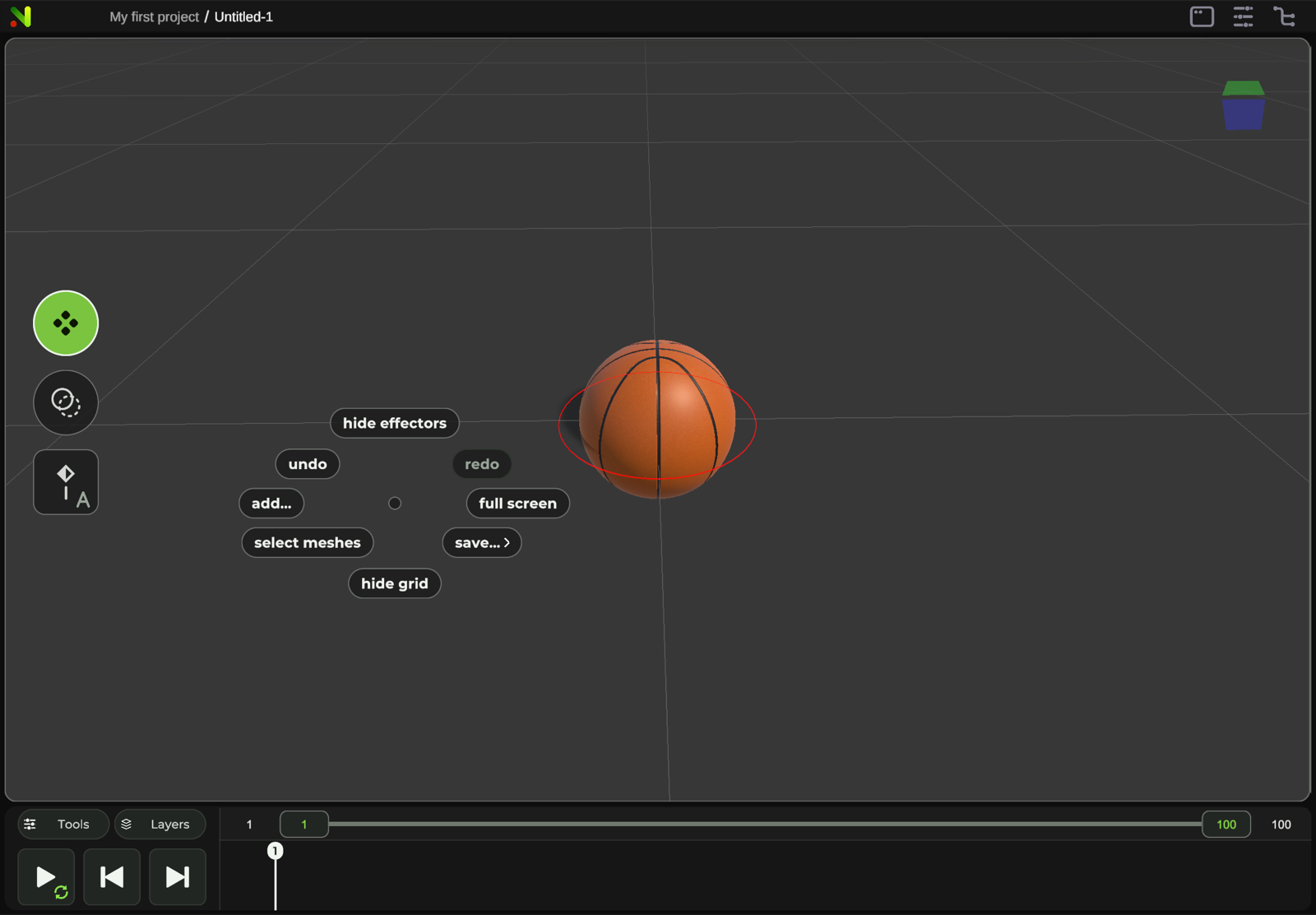
- Hold the pie key and touch the 3D view.
- Slide to select meshes, at the lower left of the ring, and let go.
Mesh selection is switched on for that view only. If you split the screen, each 3D view has its own setting, so one view can pick meshes while the other does not.
Pick a part
- Open the Inspector with its button in the header.
- Tap a part of the model. It flashes green, and the Inspector shows that part.
- Tap another part to switch to it.
There is a second way that also opens the Inspector for you: hold the pie key, touch the part itself, slide into object and choose inspect.
A tap looks for a handle first and for a mesh second. On a character full of handles, hide them while you pick meshes: hold the pie key and choose hide effectors. Choose show effectors when you are done.
What you can do with a picked part
Everything happens in the Inspector. Which cards you see depends on the part.
| Card | What you can do |
|---|---|
| Materials | Change the colour, shine and picture of the surface. There is one card for each material on the part. See Materials. |
| Renderer | Flip Enabled to hide or show this one part. Flipping it adds a key, so a part can vanish or appear during the animation, for example a hat that comes off. |
| Node | The position, rotation and scale of the part as numbers, and Active to switch it off together with everything below it. |
| BlendShapes | Shown if the part has built-in shapes, such as facial expressions. See Blend shapes. |
| + at the top | Add Toon Shading to this part for a cartoon look. Pro See Toon Shading. |
To copy the look of one part onto another, tap ⋮ on a material card and choose Copy, pick the other part, and choose Paste on its material card.
Turn it off again
- Make sure nothing is selected.
- Hold the pie key and touch the 3D view.
- Slide into object, which now sits where select meshes was.
- Choose ignore meshes, at the top of the second ring.
The green highlight clears at once, and taps on the surface do nothing again. Selecting handles is not affected.
Without mesh selection: use the Scene Hierarchy
You can reach any part of a model without tapping it. Open the Scene Hierarchy, expand the model's row and tap the row of the part. The Inspector shows the same cards. This is the easier way when a part is small, hidden inside the model, or covered by another part. See Scene Hierarchy & Inspector.
Limits and troubleshooting
| What happens | Why, and what to do |
|---|---|
| Tapping the model does nothing | Mesh selection is off. It is off in every new scene and every time you start Naomi. Turn it on with select meshes. |
| The pie has no select meshes | Something is selected, so the pie shows the options for the selection. Tap empty space first. If you see object in that place, mesh selection is already on. |
| The pie has no object group | The group shows only while mesh selection is on and your finger is over a surface when the pie opens. |
| The floor gets picked | Every scene has an invisible Shadow Plane on the ground. A tap that misses your model can land on it. Tap the model again. |
| The gizmo does not appear on the part | Picking a mesh shows it in the Inspector. It does not select it for moving. To move things, select a handle. |
| Unsupported shader on a material card | The part uses a kind of material Naomi cannot edit. The part still shows and animates. |
You pick one part at a time. The selection key and the selection box work on handles, not on meshes.