
Image to Pose
Pick a photo of a person and your character takes the same pose.
What it is and when to use it
Posing a character by hand means dragging every arm and leg into place. That takes minutes for one pose. Image to Pose does the first, slow part for you. Naomi looks at a person in a photo, works out how the body is held, and puts your character into that pose.
Example: you want your character to sit cross-legged with one hand raised. Sit that way yourself, let someone take a picture, pick the picture in Naomi, and the character sits the same way. Then you adjust the details by hand.
Think of the result as a starting point. It gets you most of the way, and you finish the pose with the usual handles.
- It runs on your device. The photo is not uploaded and you do not need an internet connection.
- It costs no credits and there is no limit on how often you use it, on the Free plan and with Naomi Pro alike.
- It makes one pose at the current frame. For a whole movement, see Motion capture from a video.
Which characters work
Image to Pose works on human characters that have Naomi's handles. Handles are the small controls on a rigged character that you drag to pose it.
| Character | Works? |
|---|---|
| Built-in human characters from the Assets library | Yes |
| Characters you rigged with Humanoid Rigging | Yes |
| Mixamo characters you imported | Yes |
| Characters made with Custom Rigging | No |
| Brick figures from the Minifigure Factory | No |
| Objects without a skeleton, such as a ball or a chair | No |
Copy a pose from a photo
- Stop the animation if it is playing.
- Select the character. Tapping any of its handles is enough.
- Move the timeline to the frame where you want the pose.
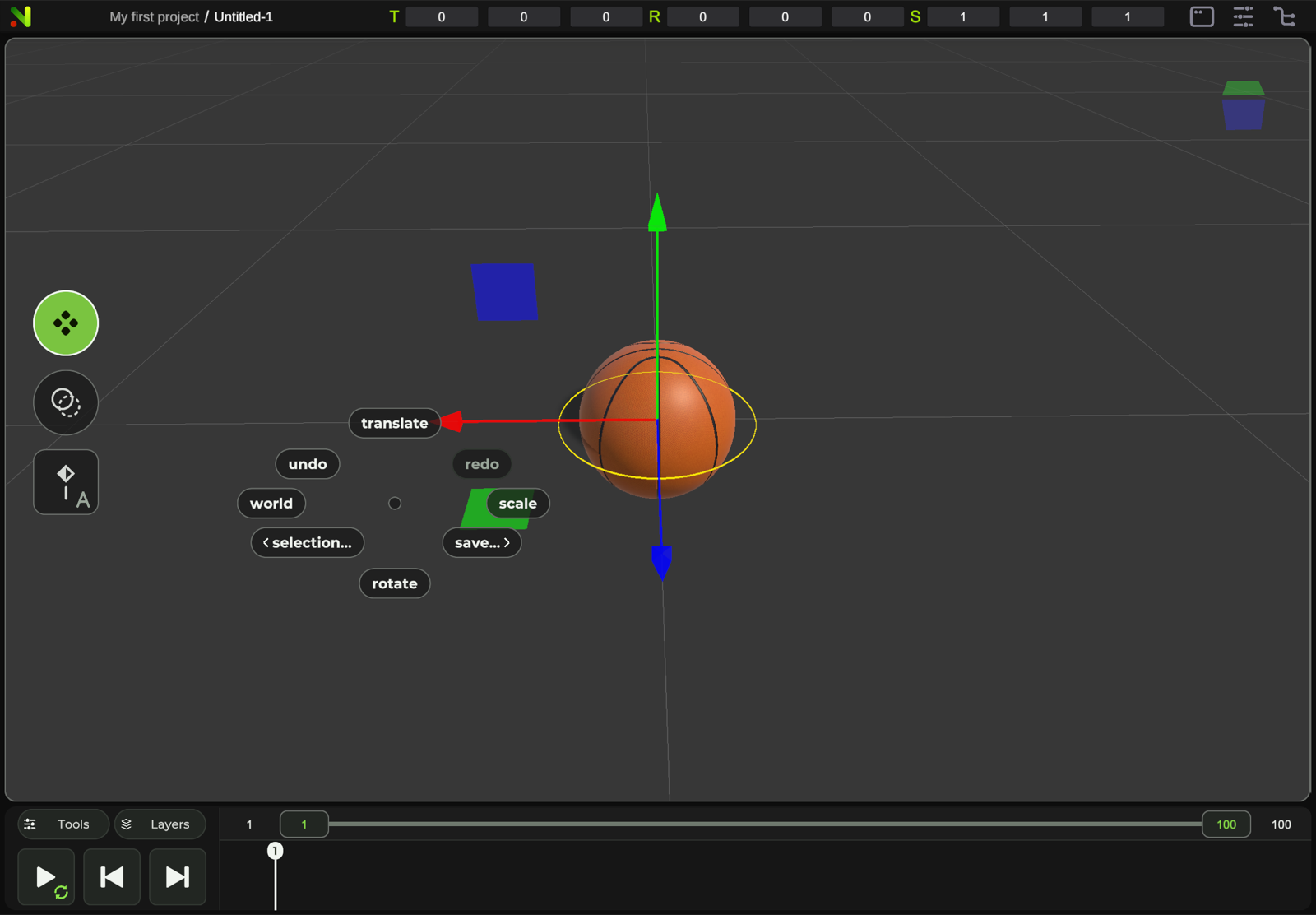
- Hold the pie key, touch the view and choose selection..., then motion capture..., then from photo.
- Your photo library opens. Pick a photo that shows one person.
After a moment the character takes the pose and Naomi says pose applied from photo.
On a device with iOS or iPadOS older than 26 there is no motion capture... group. The same tool sits directly under selection... and is called pose from photo. It works the same way.
What is applied
| Part | Copied from the photo? |
|---|---|
| Body, spine, arms and legs | Yes |
| Direction of the head | Yes |
| Twist of the forearms | Yes |
| Fingers | No. They stay as they were. |
| Face | No |
| Where the character stands in the scene | No. The character stays where you put it. |
| Body proportions | No. Your character keeps its own arm and leg lengths. |
The pose is saved as keyframes on the character's handles at the current frame. A keyframe is a saved pose at one moment on the timeline. So after the photo you can:
- Drag any handle to correct the pose, like a pose you made by hand.
- Take the whole pose back with one undo.
- Move to another frame and use another photo. Naomi fills in the movement between the two poses.
Use several photos to block out an animation quickly: one pose at frame 1, another at frame 20, another at frame 40. Play it back, then refine.
What photo works best
- One person. If there are several people, Naomi uses the one it sees most clearly. You cannot choose.
- The whole body in the picture, from head to feet.
- The person is not tiny. They should fill a good part of the picture.
- The person does not face away from the camera.
- Arms and legs that are clearly visible, not hidden behind the body or an object.
Photos from the iPhone camera work, and so do screenshots and pictures saved from the web.
- A photo is flat. Now and then an arm or leg ends up pointing forward when it should point back. Drag that handle once to fix it.
- If part of the body is cut off or hidden, Naomi guesses that part. The guess is usually close. Check it and correct it if needed.
- Feet are not pressed to the floor. For a sitting or lying pose, move the character up or down yourself.
If something goes wrong
| Message | What it means and what to do |
|---|---|
| please select a rigged character to pose | Nothing is selected. Tap a handle of the character first. |
| only rigged humanoid characters can be posed from a photo | The selected object is not a human character with Naomi's handles. See the table above, or rig the model with Humanoid Rigging. |
| stop playback before posing from a photo | The animation is playing. Stop it and try again. |
| no person found in the photo - try one showing the whole body | The person is too small, cut off, or faces away. Use a clearer photo. |
| this photo could not be opened - try a different one | The file is damaged or in a format Naomi cannot read. |
| no photo was loaded | You closed the photo library without choosing, or the photo is stored only in iCloud and could not be fetched. Connect to the internet, or pick a photo that is on the device. |
| pose from photo is not available right now | Something failed inside Naomi. Try again. If it keeps happening, restart Naomi. |
These messages come before the photo library opens whenever possible, so you do not pick a photo for nothing.