
Saving and reusing animations
Keep a movement you made in your library, then put it on a character again in another scene or project with one tap.
What it is and when to use it
An animation normally lives inside the scene where you made it. Saving an animation lifts the movement out of the scene and stores it in the Animations tab of the Assets library. From there you can put it on a character in any scene.
Example: you spend an evening on a good walk for your hero. Save it. Next week, in a new project, add the same hero, tap the walk in the library, and the character walks. You can also place the walk three times in a row on the timeline to make a longer walk.
Saving and reusing animations is free, and saved animations do not count towards the limit of assets on the Free plan.
A saved animation stays inside Naomi, for reuse in Naomi. To send your work to another 3D program as an FBX or GLB file, or to make a video, see Export & share.
Save an animation
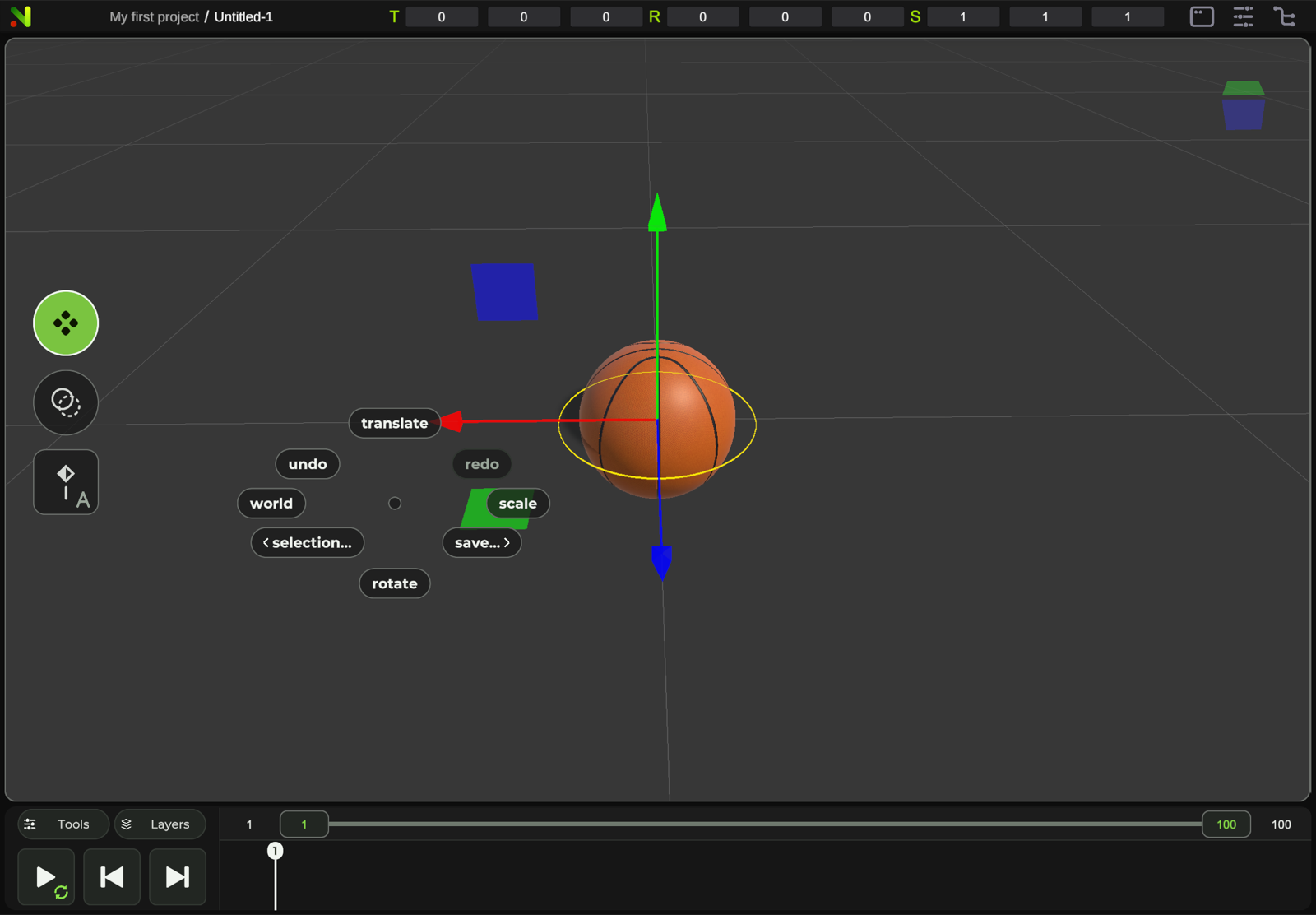
- Select what should be saved. For a single object, tap its handle. For a character, select every handle that moves: hold the selection key and drag a box around the whole character.
- Hold the pie key, touch the 3D view and choose save..., then animation.
- Type a name in the field that says Enter the name of the animation... and tap Save.
Naomi confirms with saved to Animations library. The message has an open button that takes you straight to the Animations tab.
What is saved
| Question | Answer |
|---|---|
| Which objects? | Only the handles that are selected when you save. A handle that is not selected is left out, even if it belongs to the same character. |
| Which keys? | The movement keys of those handles: position, rotation and scale, over the whole timeline. |
| Animation layers? | If the scene has layers, the saved animation is the combined result, as you see it play. |
| What is not saved? | The model itself, and settings of lights, materials, cameras and effects. Movement that comes from a Parent Constraint or from Auto Motion is not keys yet, so turn it into keys first. See Baking keyframes. |
Tapping the ring at a character's feet selects only the ring. If you save with just the ring selected, you save only how the whole character travels, not how its arms and legs move. Box-select the whole character first.
Use a saved animation
- Select the object or character that should get the movement. For a character, tapping the ring at its feet is enough here: the animation is handed out to all handles of the character.
- Move the timeline to the frame where the movement should begin.
- Open the Assets library: tap the menu button at the top left and choose Assets. The selection stays as it is.
- Go to the Animations tab. Your saved animations are listed under My Animations.
- Tap the animation. A progress bar shows briefly, and the keys appear on the timeline.

How the animation is placed
| Rule | What it means for you |
|---|---|
| It starts at the playhead. | The first key of the animation lands on the frame the timeline is on. The rest keeps its original timing after that. |
| It is added to what is there. | Keys the character already has stay. Where a new key lands on the same frame as an old one, the new one replaces it. For a clean result, put the animation on a stretch of the timeline that is empty for that character. |
| It can be repeated. | Move the timeline to the end of the first copy and tap the animation again. Do this as often as you like to chain a walk or a dance. |
| It goes to matching handles. | Each part of the animation looks for the handle it was saved from. Handles that have no part in the animation are left alone. |
| One undo removes it. | Undo straight after applying takes all the new keys away again. |
If the timeline is too short to show the whole movement, make the active range longer. See Keyframes & Timeline.
Which characters an animation fits
A saved animation is a list of handles with their keys. It fits wherever the same handles exist.
| Target | Result |
|---|---|
| The same character, in any scene or project | Fits exactly. |
| A second copy of the same asset | Fits exactly. This is how you make a crowd do the same move. |
| Another human character rigged in Naomi | Human characters rigged in Naomi share the same set of handles, so it plays. Because bodies differ in size and proportions, hands and feet may end up in slightly different places. Adjust on an animation layer. |
| A different kind of object or skeleton | No handles match. Naomi then puts the first part of the animation onto the first handle of the target, which is rarely what you want. Use undo. |
Animations that come with a model file
An FBX file can carry a movement together with its model, for example a character downloaded with a dance. When you import such a file, the import screen offers:
| Button | What you get |
|---|---|
| Save All To Library | The model on the Assets tab and its movement on the Animations tab. When you add this model to a scene, the movement is put on it automatically. |
| Save Animation Only | Only the movement, on the Animations tab. Use it when you already have the character and want one more move for it. |
An animation imported this way fits the model it came with. See Import your own model.
Manage your saved animations
On the Animations tab:
- Tap ⋯ at the top right.
- Tap the animations you mean.
- Use the bar at the bottom: Rename, Share or Delete.
- Tap Cancel when you are done.
- Share packs the animation into a file and opens the share sheet, so you can send it to another device with Naomi.
- Import, the first item in the list, brings in a Naomi animation file from the Files app.
- Type in the search field to find an animation by name.
- Deleting a saved animation does not change scenes where you already used it. The keys in those scenes are their own copy.
Limits and troubleshooting
| Message or problem | Why, and what to do |
|---|---|
| please select the object whose animation you want to save | Nothing was selected when you chose animation. Select the handles first. |
| selection does not contain any animations | The selected handles have no keys. On a character, the keys are usually on the body handles, not on the ring. Box-select the whole character. |
| please select the object in the scene on which you want to apply animation | You tapped an animation with nothing selected. Close the library, select the character and try again. |
| Only part of the character moves after applying. | Only part of it was selected when the animation was saved. Go back to the original scene, select all moving handles and save again. |
| The movement is mixed up with the old one. | The new keys were added to keys that were already there. Undo, delete the old keys in that stretch or move the timeline to an empty stretch, and apply again. |
| The character jumps at the start of the animation. | The animation begins in a different pose or place than the character was in. Start it a few frames after the previous key so there is time to move between the two, or pose the character to match. |
| The list shows only Import. | You have not saved an animation yet. Save one from a scene, or import one. |
What next
- Assets libraryThe other tabs, search and managing your assets.
- Posing charactersMake the movement worth saving.
- Animation layersAdjust a reused animation without changing its keys.
- Baking keyframesTurn constraints and Auto Motion into keys before saving.
- Animation from videoAnother way to get a movement onto a character.
- Export & shareSend animation to other programs as FBX or GLB.